
Before you start
Have your domain-provider sign-in handy, along with an existing email address for your account and delivery tests. Buying a domain alone does not create a mailbox: the mail records tell other services where to send messages and which service can send on your behalf.
- 01
Choose your domain or a mail subdomain
You need a domain you control and access to its DNS settings. Your domain stays with its current provider. If Google Workspace, Microsoft 365 or another service already receives your email, start with a separate subdomain such as inbox.yourbusiness.com instead of replacing its existing mail records.
- 02
Create your account and add the domain
Sign in to 3ʙɪ, open Domains and choose Add another domain. Enter the exact domain or subdomain you want to use for email. The domain page shows the records needed for that address; use those values rather than copying someone else's setup.
- 03
Add the DNS records at your domain provider
Open your provider's DNS settings and copy the name, type, value and any priority from the records shown in 3ʙɪ. Providers sometimes add your domain to the record name automatically, so check their instructions before saving. Keep unrelated website and existing mail records intact.
- 04
Check the records in 3ʙɪ
Return to Domains and choose Check records. DNS changes may not appear immediately. If a record is missing, compare its name and value with the domain page and check for duplicate or conflicting entries. Sending and receiving have separate requirements: a working sending setup does not prove that incoming mail is connected.
- 05
Create addresses and aliases
In Addresses, create the mailbox you want, such as hello@yourbusiness.com, and choose its display name. Under Aliases, add extra addresses such as sales@ and choose the mailbox they deliver to. An alias routes into an existing inbox; it is not a separate user account.
- 06
Test both directions before switching over
Send a message from your new address to an inbox at another provider. Reply from that inbox and confirm the reply appears in 3ʙɪ Mail. Check Spam on both sides if it is missing. Only change your existing receiving setup after you understand where incoming messages will go.
What the mail records do
- MX · Receiving
- Points incoming mail to its destination. Replacing an existing provider's MX records can move incoming messages away from that provider.
- SPF · Sending permission
- Identifies services allowed to send for a domain. Do not add competing SPF records at the same name; get help combining existing sending services if needed.
- DKIM · Message signatures
- Lets recipients check a message's domain signature. Copy the exact verification record shown for your domain.
- DMARC · Your domain policy
- Tells recipients how to handle authentication failures. Keep an existing policy unless you understand the effects of changing it; stronger policies need a correctly authenticated sending setup.
Make the inbox work for you
One inbox, several roles
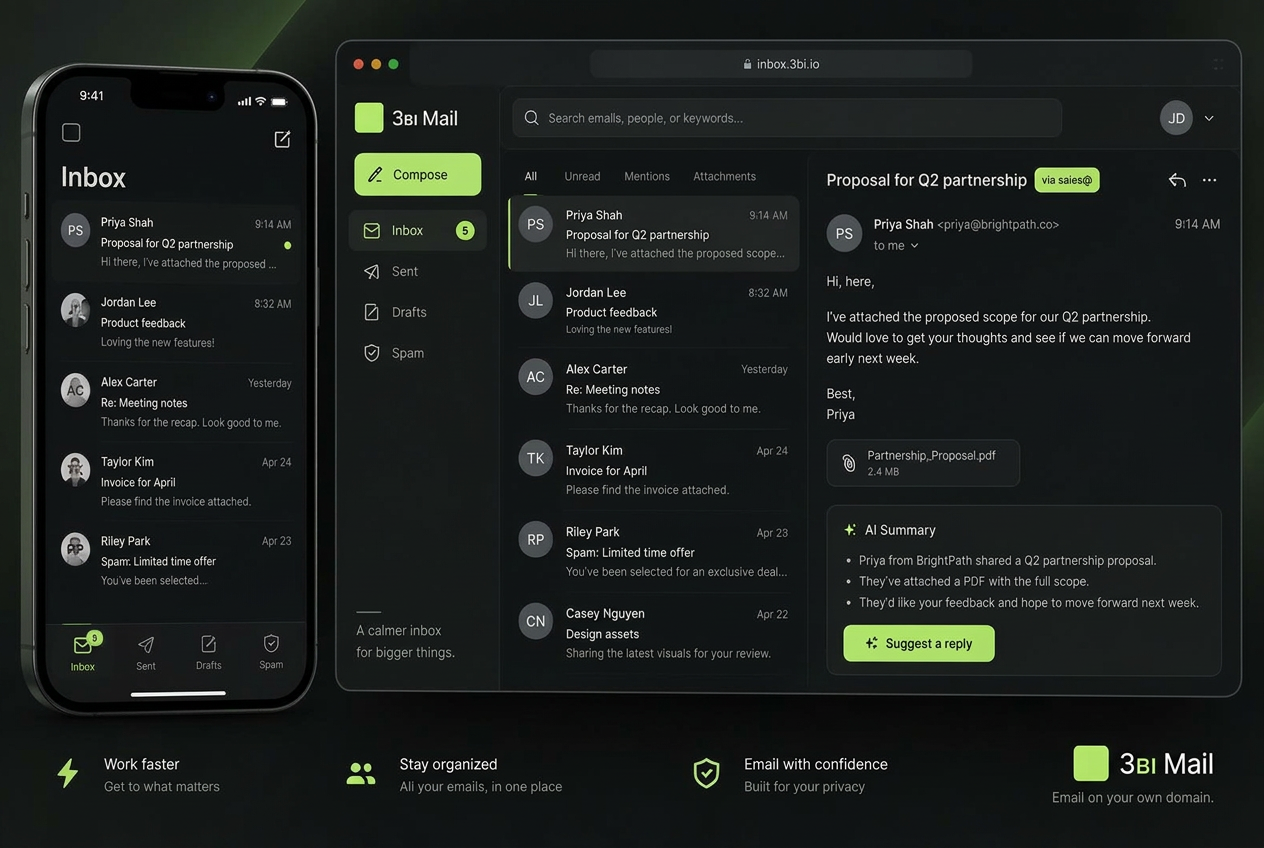
Use aliases for sales, support and bookings. Messages show the address they came through.
AI when you ask
Open a message to request a summary and suggested reply. Review the draft before sending; organization changes also need your approval.
Keep checking delivery
Use trusted and blocked sender controls, review Spam and check delivery with real messages. Verified records do not guarantee inbox placement.
Need a hand with the records?
Tell us your domain provider and which step is giving you trouble. Do not send passwords or private keys.
Contact support